How I built a Figma plugin to automate responsive tables
Migrating legacy designs in one click, bridging design-to-build gaps
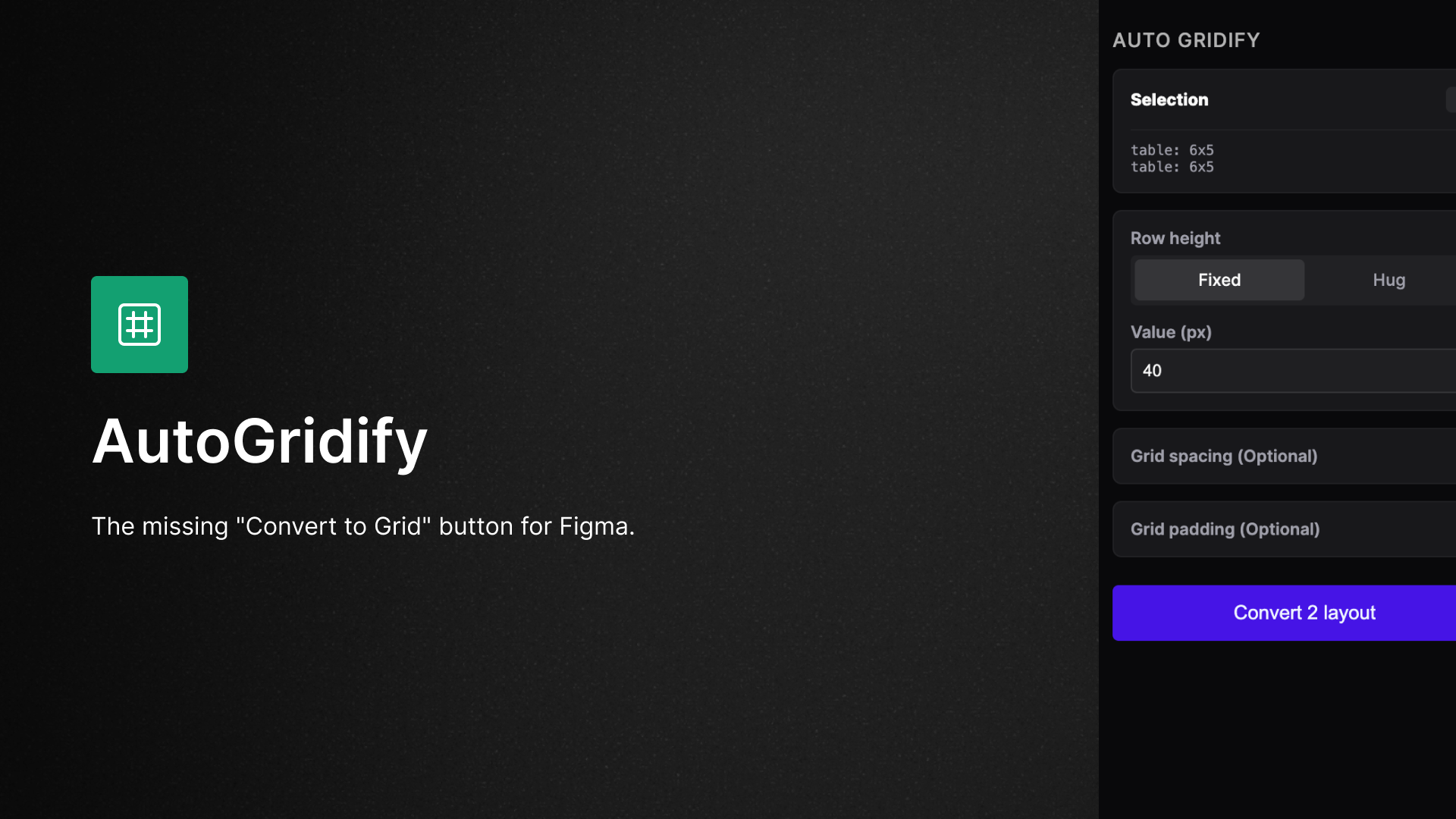
If you want to try the plugin yourself, you can find AutoGridify on Figma Community here.
Anyone who has designed a B2B platform or an enterprise dashboard in Figma knows the struggle of tables. Because Figma lacks a native table feature, designers usually resort to "faking it" by nesting cells inside horizontal Auto Layouts, then nesting these rows inside another vertical Auto Layouts. It looks like a table, but it lacks the structural intelligence of one.
The responsive layout gap
In real HTML and CSS, tables are fluid. Columns can have percentage-based widths or adapt proportionally to the viewport. In Figma, you either made every column an equal "Fill" width, or you fixed the widths manually. The concept of a true proportional, percentage-based column simply didn't exist.
With the introducion of Auto Layout Grid Flow and Fractional Units (fr), it finally brought design mocks closer to how real tables actually work. However, for teams with hundreds of legacy screens, the prospect of manually migrating every nested Auto Layout table to this new system was a massive, tedious hurdle.
Building the bridge: AutoGridify
I decided to solve this by building a plugin that automates the migration. The goal was to take a traditional "nested" table structure, analyse the existing pixel widths, and instantly flatten them into a modern Auto Layout Grid Flow table using proportional fractional units.
This was my first foray into the Figma API, and I managed to put the entire thing together over a single weekend using a process I call "vibe-learning" (instead of vibe-coding).
Learning through the "vibe"
I've never built a Figma plugin before, and I was simply too lazy to go through tutorials and documentation. I used Google Gemini to generate the initial scaffolding of the plugin, describing the input and the desired outcome.
By having an AI produce the "first draft" of the code, I could immediately see how the pieces fit together. It allowed me to:
- Reverse-engineer the logic: I used the generated code as a map to dive into the Figma API documentation with specific purpose.
- Focus on the "What" over the "How": I spent my energy on the logic of property analysis rather than struggling with basic syntax.
The limits of prompting
However, I quickly discovered where the "vibe" ends and engineering begins. Because Auto Layout Grid Flow is a relatively new feature, it seems like Gemini's training data on its specific implementation was thin.
When I tried to prompt Gemini for small fixes or specific grid-flow tweaks, it often hallucinated or suggested incorrect methods (often referring to LayoutGrid instead). This forced me to step away from the chat interface and get my hands dirty in the actual code. I had to understand the Figma API myself to achieve the precise result I wanted.
The takeaway
The best way to learn a new technology is to solve a problem that actually annoys you. By using AI to lower the barrier to entry, I was able to stop being a "user" of Figma's constraints and start building utility tools that accelerate my workflow. My weekend project didn't just result in a plugin, it gave me a new mental model for how design tools and development can collaborate.
Check out AutoGridify on Figma Community to see the results of this weekend experiment.